
| Printing |  |
Home | |
Gallery | |
Caption Maker | |
Photo to Pattern | |
Message Board |
|
JOIN . Pattern Gallery . Message Board . Home . 
. ©Crosstitch.com |
Using the Caption Maker is easy. Just select a font, enter your text in the box and click 'Create Caption'. Text will wrap at the end of the lines so don't press
'Enter' unless you specifically want to start a new line. There are various sizes of fonts so you can try different ones to see what works out best for your particular project. If you want a specific width, the page width can be adjusted from 50 - 210 stitches but keep in mind widths greater than 130 may not be possible on all printer models. For a standard size page, just leave the setting at 130 stitches. For larger pages, advanced users can experiment with larger paper sizes and printing in 'Landscape' mode.
For best printing results, set your 'Page Setup' as follows: Margins to 0.2" (5mm) -- Paper size to 'Letter Size' -- Orientation to 'Portrait'. For captions wider than 130 stitches, change the Orientation to 'Landscape' . Also, clear the 'Header' and 'Footer' fields to prevent extra info from being printed on your page. - Netscape users: set margins to 0" and select the option 'Print Backgrounds'. - Firefox users: unfortunately Firefox doesn't print the screen properly. This is a known bug and will be fixed in a future Firefox update. * Note for users with 'accelerated' dial-up service: These services try to speed up your Internet by compressing images so make sure you view the pattern pages in 'original quality' or they may be distorted (contact your ISP for more info). 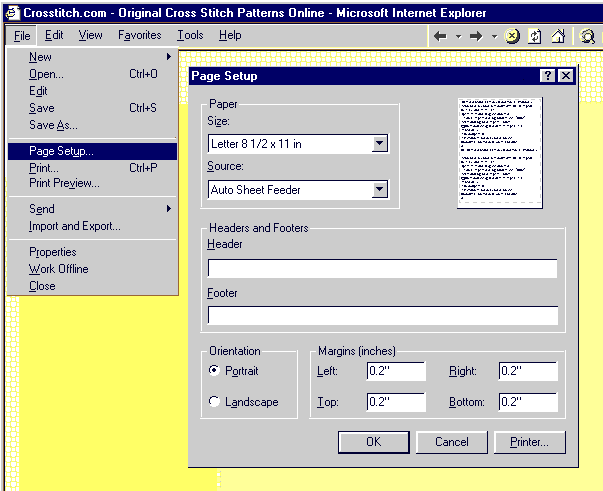 Some models of printers will try to reduce or enlarge to fit the page. This can cause missing or distorted grid lines and/or symbols. If your printer 'Properties' has a setting to 'Reduce/Enlarge' or 'Scale' to fit the page, disable it or change it to 'Normal'. To find your 'Printer Properties' click the 'Printer' button in the bottom right of your page setup. Note: Internet Explorer 6 may also try to reduce the pattern on your screen display making it hard to read. 'Right-Click' on the page and click on the orange 'Re-Size' box to view the normal size. If the printout isn't very clear; first of all make sure you replace your print cartridge or ribbon if needed. Then check your printer 'Properties' for a setting that says 'Graphics' 'High' and/or 'Graphics' 'Fine'settings - The poorer quality settings usually say 'Draft' or 'Low'. Captions may not display or print properly in some browsers. The newer versions of Internet Explorer or Netscape are recommended. If you're having a problem printing that you can't solve, please give us a quick note in the form below and we will be happy to try and help. Contact Form: |